Settings
Radeon Chill and Anti-Lag: What They Do and When to Use Them
AMD Software has two settings that sound similar but do opposite jobs. Learn what Radeon Chill and Radeon Anti-Lag do, which GPUs support them and when to turn each on.
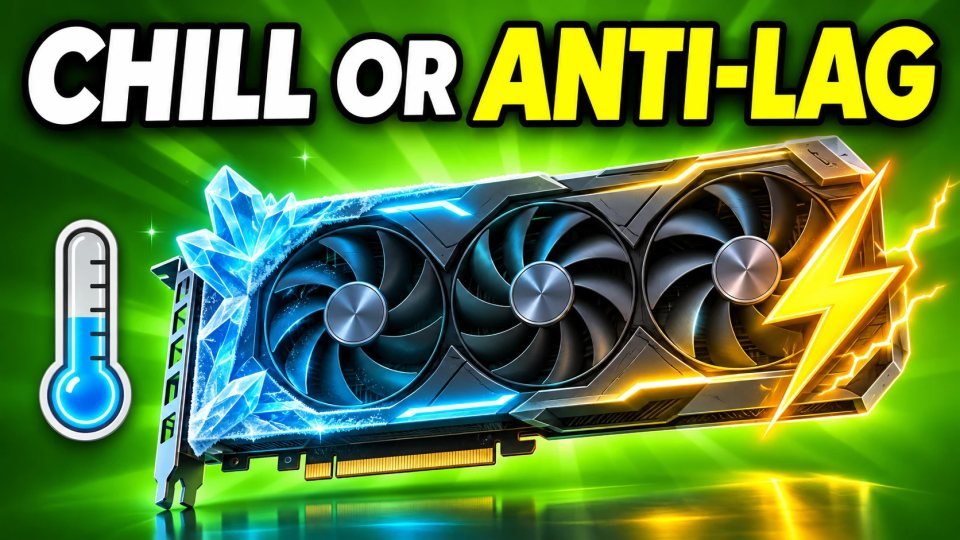
If you use a Radeon graphics card, AMD Software includes two settings that people often mix up: Radeon Chill and Radeon Anti-Lag. One is made to keep your PC cool and quiet. The other is made to make the game react faster to your mouse and keyboard. They solve different problems, so you should decide what you want before you switch anything on. This guide explains both using AMD's own pages.
## Radeon Chill: cooler and quieter AMD describes Radeon Chill as a power saving feature that regulates your frame rate based on in-game movement. During intense motion it lets your frame rate run up to a cap that you define. When nothing is moving on the screen, the frame rate drops automatically to save power. The goal is a system that runs cool and quiet, and AMD says it also helps save battery life on laptops.
### What AMD says about it - It works for most titles using DirectX 9, 10, 11 and 12, and Vulkan. - UWP games are not supported. - It is optional. You can turn it on globally or per game. - AMD calls it an excellent match with a FreeSync display. - It does not replace Frame Rate Target Control. AMD says Chill can cap the frame rate at a maximum when you set it per game, so the behavior is similar. - There is an RTS and MOBA option, which AMD says to use with those kinds of games.
### When to use it Chill makes the most sense when you care about noise, temperature or battery, for example in a laptop, in a slower game, or in a game you play on a hot day. AMD presents it as a power saving feature, not as a competitive one, and it lowers the frame rate when nothing moves, so judge it by feel in each game. If heat is your main problem, read our guide on normal CPU and GPU temperatures first.
## Radeon Anti-Lag: faster response AMD describes Anti-Lag as a technology for fast click-to-response times, aimed at esports and low-latency play. AMD also has Anti-Lag 2, which it describes as an in-game technology that needs developer integration. AMD lists Counter-Strike 2, Dota 2 and Ghost of Tsushima Director's Cut as games that have it, with more coming.
### Requirements and how to turn it on - Hardware: Radeon RX 400 Series and newer desktop graphics cards, and Ryzen 2000 and newer APUs. AMD notes there is no support for multi-GPU setups. - Graphics APIs: DirectX 12, 11 and 9. - Windows: Windows 10 and Windows 11. - How: you can enable it with one click in the HYPR-RX profiles on the AMD Software home tab, or per game in the game profiles.
AMD claims HYPR-RX can reach up to 78 percent faster performance and 54 percent lower latency. That is AMD's own claim from its own testing, so treat it as an upper limit, not a promise.
## Which one should you pick? - You want lower noise and heat: try Radeon Chill, per game. - You want faster response in a competitive game: try Radeon Anti-Lag, and use Anti-Lag 2 if the game supports it. - You want both: they have different goals. Chill saves power by lowering the frame rate when nothing moves, and Anti-Lag aims for the fastest response. AMD's pages do not say how they work together, so test each on its own before you combine them.
For the bigger picture of lag, see our guide on reducing input lag and ping. If you use a FreeSync screen, our article on VSync, G-Sync and FreeSync explains how it works with frame caps. Keep your driver current too, with our guide on updating graphics drivers safely.
## What we could not confirm AMD's pages do not say whether Anti-Lag works with every anti-cheat system, so check the game's own support page before you use it in an online game.
Verified with (2)
We check each fact against at least two independent sources and write the text ourselves.


