Settings
Anti-Aliasing Explained: MSAA, FXAA, TAA and DLAA
What anti-aliasing does, how MSAA, FXAA, TAA, DLAA and FSR Native AA differ, what each one costs and how to pick the right option in a game's graphics menu.
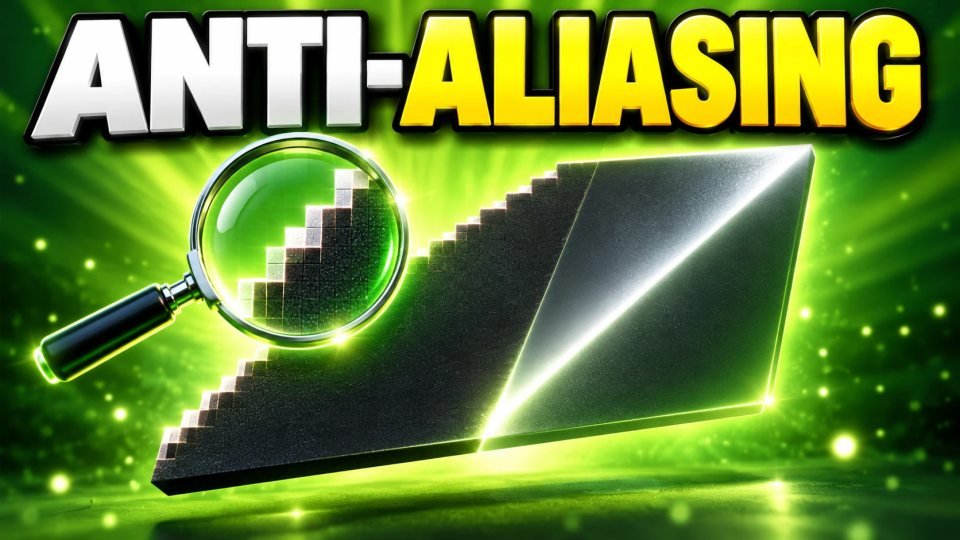
Open the graphics menu of almost any PC game and you will find a setting called anti-aliasing with a list of strange names: MSAA, FXAA, TAA, DLAA. They all try to solve the same problem, but they work differently and cost different amounts of performance. This guide explains each one in plain words, using the documentation from Epic Games, NVIDIA and AMD, and ends with a simple way to choose.
What aliasing is
A screen is a grid of pixels, so a diagonal line or the edge of a building can look like a staircase instead of a smooth line. That jagged look is called aliasing. Anti-aliasing is any method that softens those edges so they look smoother. Some methods also reduce flicker on thin objects while you move.
MSAA: smooth the edges of objects
Epic's documentation says MSAA primarily looks at areas that are prone to problems, such as the edges of geometry. You usually choose a sample count of 2, 4 or 8. Epic states that more samples give better visual quality at the cost of higher GPU processing.
There is one limit worth knowing. Epic says aliasing from materials, textures and transparent surfaces is not affected by MSAA. In Unreal Engine it also works only with the forward renderer, so many modern games do not offer it at all. If you see MSAA in a menu, expect it to help edges but to cost more as you raise the number.
FXAA: fast and simple
Epic describes FXAA as a spatial post-process. It finds edges with a high-contrast filter and blends the pixels along them. It is fast to render and, in Epic's words, well suited to low-end devices and desktops. The trade-off is also stated in the documentation: the final image can lose fidelity compared with other anti-aliasing techniques. In practice that often means a slightly soft picture.
TAA: use past frames
TAA, or temporal anti-aliasing, samples different locations within each frame and uses past frames to blend the samples together. Because it works over time, it can smooth many kinds of shimmer, not only object edges. The cost of this approach is that old frames can leave faint trails behind moving objects, which is called ghosting. Epic notes that its newer Temporal Super Resolution (TSR) has less ghosting than the default temporal anti-aliasing of Unreal Engine 4.
Epic also describes TSR as an upscaler. It says images can approach the quality of native 4K from an input resolution as low as 1080p. Its own example shows 57.50 ms per frame at native 4K compared with 33.37 ms for 1080p upscaled to 4K. That is one engine and one test scene, so treat it as an illustration and not a promise for your game.
DLAA and FSR Native AA: native resolution, better edges
Upscalers such as DLSS lower the resolution the game renders at, then rebuild a sharper image. The two options below use similar technology but keep the full resolution, so the goal is image quality and not extra frames.
- DLAA (NVIDIA). NVIDIA calls DLAA an anti-aliasing technique based on AI, aimed at higher image quality. It uses the same Super Resolution technology developed for DLSS but builds the image at native resolution. NVIDIA's page marks it as available on GeForce RTX 50, 40, 30 and 20 Series cards. The page gives no numbers for its performance cost.
- FSR Native AA (AMD). AMD lists Native AA as a quality mode of FSR 4 that renders at 100 percent of the screen resolution. AMD says it provides image quality superior to native rendering with a modest performance cost. FSR 4 upscaling requires a Radeon RX 9000 Series GPU or newer, and on other hardware the API falls back to FSR 3.1.5.
For a comparison with the upscaling modes themselves, read our guide to DLSS, FSR and XeSS upscaling.
Which one should you pick?
These are practical rules, not claims from the makers:
- Weak or older graphics card. Try FXAA first. It is the lightest option, with the softer picture Epic describes.
- Game offers DLAA or Native AA and you have spare performance. These are usually the best-looking choice at native resolution.
- Game only offers TAA. It is the common default in modern games. If you notice trails behind moving objects, check whether the game has a sharpness slider or another mode.
- Game offers MSAA. Try 2x or 4x and watch your frame rate. Remember it does not smooth textures or transparent surfaces.
- You need more FPS, not more beauty. Look at upscaling or lower settings instead. Our guide to the graphics settings that cost the most shows where the performance goes.
How to compare them yourself
- Stand in a spot you can return to, with fences, wires or distant buildings in view.
- Switch between the options and compare the same view. Look at thin lines, edges and movement.
- Check your frame rate for each choice. Our guide to FPS, frame time and 1 percent lows explains how to read it.
- Keep the one that looks clean without hurting smoothness. If you still need more speed, see how to raise FPS in any PC game.
Quick checklist
- Aliasing is the jagged edge look, and anti-aliasing smooths it.
- MSAA smooths object edges and costs more as the sample count rises.
- FXAA is fast and simple but can soften the image.
- TAA uses past frames and can show ghosting.
- DLAA and FSR Native AA work at native resolution and aim for image quality.
- Test in your own game, because results depend on the engine and your hardware.
Verified with (3)
We check each fact against at least two independent sources and write the text ourselves.


