FPS and Performance
How to Tell if Your CPU or GPU Is Limiting Your FPS
A simple test with an overlay and a resolution change shows whether your CPU or your GPU holds back your frame rate, what the numbers mean and what to try next.
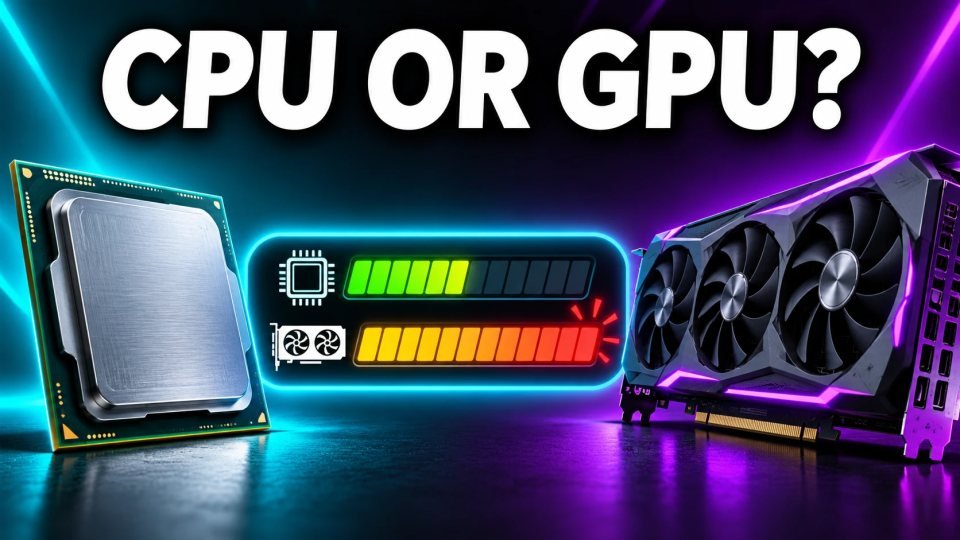
When a game runs below the frame rate you expect, one part of your PC is usually working at its limit while another waits for it. That part is the bottleneck. Knowing whether it is your processor or your graphics card tells you which settings to change and whether an upgrade would even help. This guide uses two sources, CyberPowerPC and Evetech, and shows a test you can do in about ten minutes. The two guides agree on the method but give different numbers, so we point out where.
What a bottleneck is
A bottleneck means one component cannot keep up and the other has to wait. CyberPowerPC notes that some degree of bottleneck is always present and normal: something in every PC is the limit. The useful question is which part it is in the game you are playing.
Step 1: Show usage on screen
Install MSI Afterburner with RivaTuner Statistics Server (RTSS), both free. In the Monitoring tab of Afterburner, turn on GPU usage, CPU usage and, if you can, per-core CPU usage, plus FPS and frame time, and show them in the on-screen display. Evetech calls this the most reliable method. If you do not want to install anything, both guides mention Windows Task Manager (Ctrl+Shift+Esc, Performance tab). Run the game in a window and watch the graphs, but you will not get frame times this way.
Step 2: Read the numbers in a busy scene
Play a demanding part of the game, not a menu or an empty area, because those readings are misleading.
- GPU near 100 percent: the graphics card is the limit. CyberPowerPC gives about 95 to 100 percent GPU use with the CPU around 40 to 60 percent. Evetech says 100 percent GPU use while gaming is ideal.
- CPU near 100 percent with the GPU lower: the processor is the limit. CyberPowerPC puts the GPU at about 70 percent or lower. Evetech only says the GPU is noticeably lower and gives no number.
- Both high: there is no major bottleneck.
These are rough guides, not hard cutoffs. One core at 100 percent can cause trouble even when total CPU use looks fine, so CyberPowerPC suggests HWiNFO64 to see per-core load.
Step 3: Do the resolution test
Change only the resolution and keep every other setting the same. Evetech uses 1280x720, and CyberPowerPC steps down from 4K to 1440p, 1080p and 720p.
- A large FPS gain means the GPU was the limit.
- Little or no change means the CPU was the limit.
What to try next
If the GPU is the limit, lower resolution, shadows or texture quality, or use an upscaler. If the CPU is the limit, CyberPowerPC says lowering draw distance, crowd density or physics helps, and graphics settings do little. Evetech lists a CPU upgrade for the CPU case and a GPU upgrade or lower settings for the GPU case. CyberPowerPC adds that a GPU limit is generally the more acceptable one. Open world, strategy and online games tend to lean on the CPU, and 1080p raises the chance of a CPU limit.
Before you decide, check that nothing else caps your frames. A frame limiter or V-Sync can keep GPU use low on its own. Our guide to FPS, frame time and 1 percent lows explains stutter that averages hide, and the FPS to frame time calculator turns your numbers into milliseconds.
Quick checklist
- Show GPU use, per-core CPU use, FPS and frame time in an overlay.
- Test in a busy scene, not a menu.
- GPU near 100 percent points to the graphics card, CPU near 100 percent with a low GPU points to the processor.
- Confirm with the resolution test.
- Change settings first, and upgrade only the part that is actually the limit.
Verified with (2)
We check each fact against at least two independent sources and write the text ourselves.