FPS and Performance
How to Cap Your FPS Below Your Refresh Rate for Smoother Gameplay
A frame cap a few FPS below your monitor's refresh rate can even out frame pacing. Learn the numbers to use, where to set the cap and how to check that it helped.
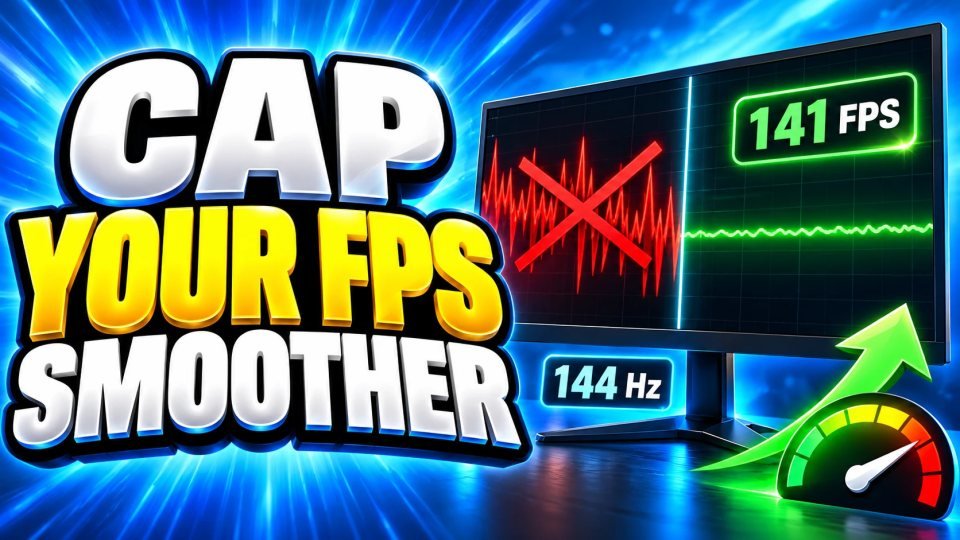
A game can run at a high average frame rate and still feel uneven. The reason is often frame pacing: the gaps between frames are not equal, so the picture seems to hitch even though the number on screen looks fine. One of the simplest fixes is a frame cap set a few frames per second below your monitor's refresh rate. This guide explains the numbers, where to set the cap and how to test it. The two guides we used agree on the idea but differ a little on the exact margin, and we say where.
Why a cap below the refresh rate helps
A monitor refreshes at a fixed rate, such as 144 times per second. If your game keeps swinging around that number, some frames reach the screen at one moment and some at another, and the time each frame stays on screen changes. Gamer Hardware gives the example of frames shown for 6.9 ms in one case and 13.8 ms in the next. A cap just under the refresh rate gives each frame a more regular window. The Evetech guide describes the same goal in plain terms: a steady, locked rate feels better than an average that swings up and down.
Which number to use
Both guides give a rule of thumb, not a law:
- Gamer Hardware says to cap 2 to 3 frames below the refresh rate, for example 141 on a 144 Hz monitor or 237 on a 240 Hz monitor.
- The Evetech guide says to cap 3 to 5 frames below, and also uses 141 on a 144 Hz monitor as its example.
If you are not sure, start with 3 below your refresh rate. A 60 Hz monitor gets 57, a 120 Hz monitor 117 and a 165 Hz monitor 162. If your game cannot reach the cap anyway, set the cap at a rate it can hold, because a steady lower number is better than constant swings.
Where to set the cap
- In the game: many games have a Framerate Limit or Max FPS option in the video settings. It is the easiest place to start.
- With RTSS: Gamer Hardware recommends RivaTuner Statistics Server, which comes with MSI Afterburner, and says it gives tighter frame time consistency than most in-game limiters. Set the limit in the program and keep it running while you play.
- In the graphics driver: many drivers also offer a frame limit option. Neither guide gives steps for it, so check your driver's control panel.
Use only one limiter at a time. Two caps fighting each other can add problems instead of removing them.
Combine it with VRR
If your monitor supports G-Sync or FreeSync, the Evetech guide suggests turning on variable refresh rate, keeping V-Sync on in the driver and turning it off in the game, then adding the cap a few frames below the refresh rate. This keeps the game inside the range where VRR works. Our guide on V-Sync, G-Sync and FreeSync explains what each one does, and the monitor refresh rate guide helps you find your number. Gamer Hardware also mentions an RTSS option called Scanline Sync for tearing without extra latency, but it does not cover VRR.
How to test whether it helped
- Pick a scene you can repeat and turn on a frame time graph in an overlay.
- Play it once without a cap and once with the cap.
- Compare the graph: a flatter line means steadier pacing. Our guide to FPS, frame time and 1 percent lows shows how to read it, and the FPS to frame time calculator turns your numbers into milliseconds.
- If the line is still spiky, the cause may be something else, such as shader compilation stutter.
Things to keep in mind
A cap lowers your highest frame rate a little, so it is not for people who want the maximum number at any cost. It also does not fix a weak graphics card or processor. Results depend on your PC, your game and your monitor, so treat the numbers above as a starting point.
Quick checklist
- Cap 3 frames below your refresh rate to start.
- Use one limiter only: in-game, RTSS or the driver.
- With G-Sync or FreeSync, follow the VRR setup above.
- Test with a frame time graph before and after.
- If it does not help, look at shaders, memory and background apps.
Verified with (2)
We check each fact against at least two independent sources and write the text ourselves.


